To add a clickable link to a LinkedIn post, paste the full URL into the composer, wait a few seconds for the preview card to load, then delete the raw link text so the post reads clean. Feed posts do not support anchor-text links, so a pasted URL is your only clickable route.
If you have ever pasted a link only to watch the preview break, or hunted for the article editor on your phone and found nothing, you are not alone. LinkedIn shifts these buttons often, so the steps below match the current desktop and mobile interface.
A few details trip people up:
- A pasted URL is the only way to make a feed post clickable, since anchor-text links work only inside articles.
- LinkedIn reports no automatic reach penalty for an external link, though independent data on the size of any dip stays mixed.
- The Write article editor is desktop only, so writing from a phone means loading LinkedIn in a browser on Desktop site.
- A free job post runs at $0 for up to 14 days, while a promoted role uses a pay-per-click budget you set.
How Do You Add a Clickable Link to a LinkedIn Post?
Start a post, paste the full URL, and give LinkedIn a few seconds to pull in the preview card before you touch anything else. Once the card appears, you can delete the raw URL text and the clickable preview stays attached, which keeps the post clean and readable.
LinkedIn’s own help page lays out the core sequence, and you can do it in under a minute:
- Click Start a post at the top of your feed.
- Paste or type the full URL into the text box, where you have up to 3,000 characters.
- Wait a few seconds for the preview card and its image to load fully.
- Delete the raw URL text once the card has rendered, leaving only the clean preview.
- Choose your audience, then click Post.
Common mistake: deleting the URL before the preview finishes loading. Do it too early and the image can vanish after you publish, leaving a bare link with no card. Let the full card render, then remove the text.
Anchor text is where people get stuck. You cannot turn a single word into a link inside a feed post, because that kind of anchor-text linking works only inside LinkedIn articles and profile fields, as ConnectSafely’s 2026 breakdown spells out. If you paste several links, only the first URL generates a preview card, and LinkedIn shortens the displayed link to its lnkd.in format while keeping the original destination live.
For linking to a person or company, type @ and start their name, then pick them from the list, which drops a live, clickable link to their profile with no URL at all. You can also edit the card’s title after it loads, though the thumbnail comes from the page’s own Open Graph tags, so run the URL through LinkedIn’s Post Inspector if the image looks old and you want it re-pulled.
Do Links Really Kill Your Reach on LinkedIn in 2026?
LinkedIn’s official line is that it does not intentionally cut a post’s reach just because it carries an external link, as long as the post stands on its own value. The honest catch is that independent data still points to a dip, and the size of it swings hard depending on who did the measuring.
The main studies don’t agree. Here they are side by side:
| Study or dataset | What it found |
|---|---|
| van der Blom, 2026 (~1.3M posts) | One external link in the body cut median reach by about 18.8%, and comments with links are now suppressed by up to 80%. |
| van der Blom, 2025 (~1.8M posts) | Organic reach reset roughly 50% year over year, yet link posts saw a modest 5% gain. |
| Earlier van der Blom editions | Around 40% to 50% less reach on personal posts and 25% to 35% on company posts. |
| 2026 algorithm guides (aggregated) | Estimate roughly 60% less reach, and only as a rough ballpark. |
| Saywhat, Q1 2026 (~400K posts) | Curated posts with three or more useful links saw 441% higher reach, an outlier tied to genuine resource posts. |
| AuthoredUp (~620K posts) | Single-link promotional posts get the lowest reach, and removing the preview card with short copy helps. |
Whatever the exact number, the takeaway is the same: you lose little reach when the post is worth reading without the click, and the old habit of dropping the link in the first comment no longer reliably helps now that comment links are being suppressed too. If a post has to carry a link, lean harder on the fundamentals that drive reach on any LinkedIn post, starting with a first line strong enough to survive the fold.
How Do You Write a LinkedIn Article From Your Phone?
You cannot write a LinkedIn article inside the native mobile app, where the Write article editor simply does not appear. To do it from a phone, open LinkedIn in a mobile browser like Safari or Chrome and switch to Desktop site, which loads the full editor on your screen.
On a computer, the option sits in the share box at the top of your homepage, next to Start a post, and clicking Write article opens the same editor that also builds newsletters. Some third-party guides claim a Write article button now shows up inside the app after you tap Post, but that contradicts LinkedIn’s own documentation, so plan for the desktop or browser route until it is confirmed.
Once the editor loads, you get real formatting a feed post never offers, and the toolbar covers the essentials:
- Headings and text styles to structure a long read.
- Bold, italic, and blockquotes for emphasis and pull-quotes.
- Ordered and unordered lists for steps or criteria.
- A cover image and content embeds for visual anchors.
- Anchor-text links and @-mentions that make words clickable.
You can schedule an article with the clock icon next to Publish, and share it as a draft for feedback before it goes live. Article images run up to 10 MB as JPG, PNG, or static GIF, and the cover looks sharpest at 2,000 x 600 px. Newsletters run through the same tool: choose the newsletter option from the dropdown, and every author can run up to five newsletters, with subscribers notified of each new edition.
Good to know: feed-post drafts and article drafts live in different places. A feed post keeps one draft per device through the Cancel prompt’s Save as draft option, and navigating away can overwrite it. Article drafts sit on LinkedIn’s servers at linkedin.com/article/manage/drafts, reachable from any browser though not from the mobile app.
Browser extensions can interfere too: Grammarly and similar tools sometimes block the cursor from landing in the editor fields, so switch them off if typing suddenly stops working.
How Do You Post a New Job on LinkedIn?
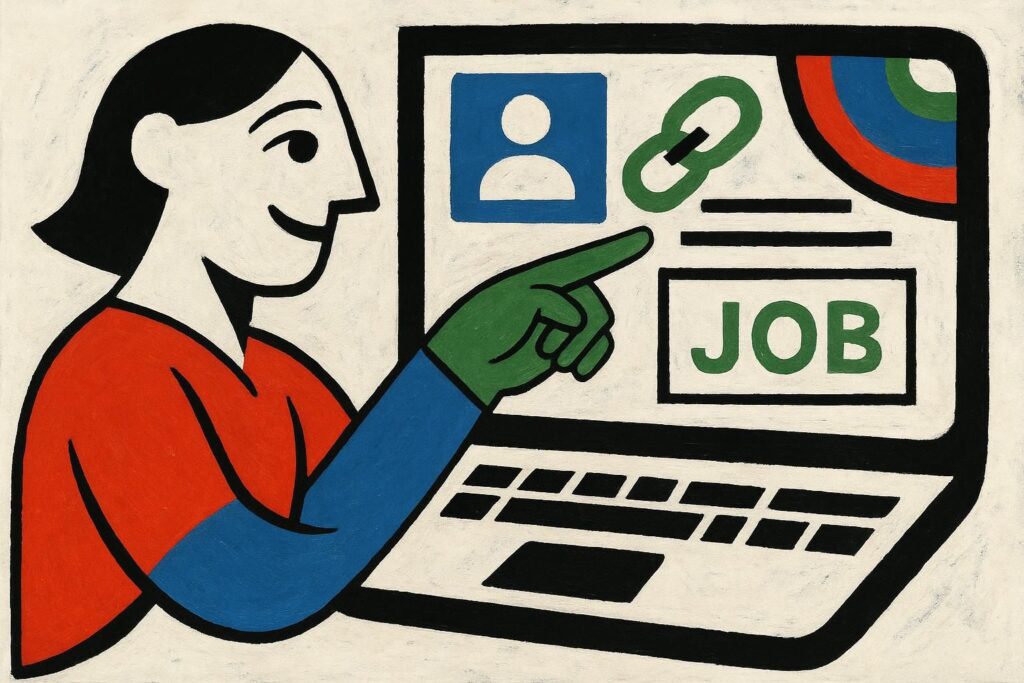
You can post a job on LinkedIn for free. On desktop, click the Jobs icon at the top of your homepage, choose Post a free job, fill in the details and settings, then pick Promote job or Post without promoting.
From a phone, tap Post a job, enter the title, pick Write with AI or Write on my own, fill in the details and settings, tap Continue, then Post job for free. On iOS, you have to switch to desktop to edit a budget or promote the role.
What you really have to decide is whether to promote. Here’s how the two compare:
| What to compare | Free job post | Promoted job post |
|---|---|---|
| Cost | $0, one active listing at a time | Pay-per-click budget you set. $10 a day over 30 days runs up to $300 |
| How long it runs | Active up to 14 days, closes at 30 | Runs until you close it, or auto-closes at 6 months |
| Reach | Visibility drops in search over time | 3x more qualified applicants, per LinkedIn’s own claim |
| Limits and extras | Pauses at roughly 10 to 30 applicants. Free repost blocked for 7 days | Unlocks Hiring Pro tools like 350 candidate invites |
The 14-day window is not fully settled. An older version of LinkedIn’s help page still lists 21 days, so watch the countdown on your own posting rather than assuming a fixed number.
Cost for a promoted role depends on your market, and the public benchmarks vary widely. One US-only set from a single vendor puts cost-per-click at about $1.50 to $4.50, with an average near $2.83 per applicant, so treat those as directional. Bigger employers using Job Slots pay roughly $200 to $1,000 per slot each month on annual contracts, according to aggregator data.
For scale, the average US cost-per-hire for nonexecutive roles reached about $5,475 in 2025, which makes even a decent pay-per-click budget look like pocket change against the full cost of filling a role.
Worth knowing: LinkedIn also runs a full-service hiring option that costs nothing upfront but charges 20% of the hire’s pay if you actually hire through it. For a single opening, a small promoted post is usually the cheaper route.
When Does a Post Link Beat a Full Article for Traffic?
A feed post with a link wins whenever you want immediate, targeted clicks to a page that already exists, because your post still reaches the feed while an article works like a slow-burn asset. A product launch or an event signup fits perfectly, since those pages need eyes today.
Your article works on a different timeline. It gets its own URL and usually lands in Google within 24 to 48 hours, while feed posts mostly stay out of search results. Articles also make up only about 6% of personal-profile content and see roughly a fifth of the feed reach that posts pull, which is why they pay off slowly, through search over months.
One SEO caveat: external links inside a LinkedIn article are usually tagged nofollow, so they pass no ranking power to your own site, though they still send referral traffic. The nofollow claim comes from lower-authority SEO sources, so hold it loosely. Once you can post a clean link and know when an article makes more sense, the harder question is what to actually post so it gets seen.
Turning These Three Moves Into a Weekly Routine
Every move here takes under two minutes once you know the exact path. The hard part is doing it every week. Publish once and then go quiet, and even your best link post or article stops working.
Most people drop that rhythm within a month. I built Trustypost as an all-in-one tool to hold it: it tracks trends and news to hand you post ideas in your own voice, then schedules and publishes them across LinkedIn, X and Threads from one place, so you don’t have to block out an hour every morning to keep it going.
If you are doing this regularly, decide your rhythm first, then line the posts up in a scheduler. Once it is set up, you mostly just check in on it.
Common Questions About Links, Articles, and Jobs on LinkedIn
Can you hyperlink a specific word in a LinkedIn post?
No. Feed posts do not support anchor-text links, so you cannot turn a single word into a clickable link. Your only option is to paste a full URL that LinkedIn makes clickable, then delete the visible URL once the preview card loads. Anchor-text linking works only inside LinkedIn articles and profile fields.
Will adding a link lower my post’s reach?
Barely, and less than the myth suggests. LinkedIn says an external link carries no automatic penalty when the post delivers value on its own, and independent studies range from a small dip to well over half. The link-in-comments workaround no longer reliably helps, since comment links are now suppressed too.
Can I write a LinkedIn article on the mobile app?
The native mobile app cannot create or edit articles, so the Write article editor stays desktop only. To write one from a phone, open LinkedIn in a mobile browser and switch to Desktop site, which loads the full editor. On a computer, the option sits in the share box at the top of your homepage.
How much does it cost to post a job on LinkedIn?
You start for free, since a basic job post costs nothing, with one active listing at a time. Promoting a role adds a pay-per-click budget you set, and $10 a day over 30 days runs up to about $300. US cost-per-click benchmarks sit near $1.50 to $4.50, though those are single-vendor figures.
When should I post a link instead of writing an article?
Post a link when you want fast, targeted clicks to a page that already exists, because feed posts still get active distribution. Write an article when you want a searchable asset with its own URL that Google can index and keeps pulling traffic for months. Most people need the post far more often.